Tutorial
How to use BK Prepare
From the first question to printed forms, in eight steps with screenshots.
Last updated October 2026
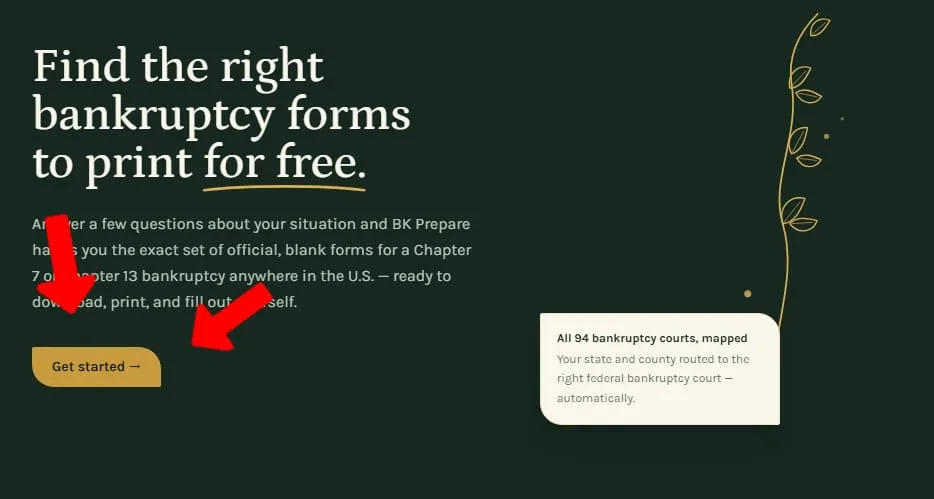
Click “Get started”
Everything starts from the home page. The Get started button opens the questions. If you’ve been here before, it says Continue and picks up where you left off.
Answer the questions
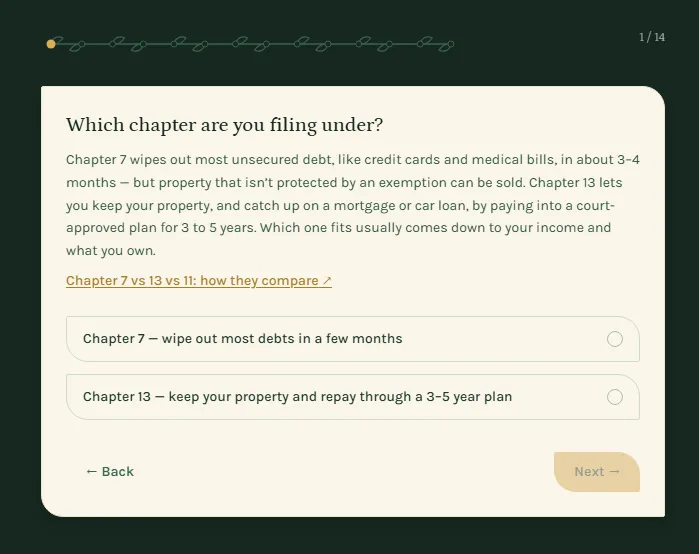
One question at a time: which chapter you’re filing under, where you live, and a few things about your property, debts and income. Each question explains what it’s asking, with a link to read more. The answers decide which forms make your checklist, and they stay in your browser.
Download your forms
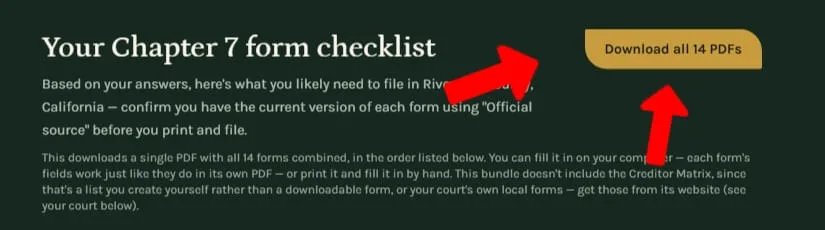
The last question takes you to your form checklist. Download all gives you one PDF with every form on the list, in the same order. Each form is also listed on its own, with a link to its official source.
Find your court’s local forms
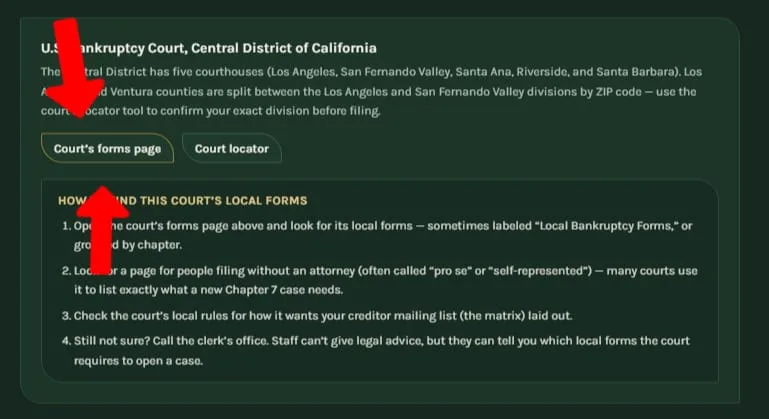
Further down the checklist is the bankruptcy court that covers you. Local forms are set by each court, so they aren’t in the download. Court’s forms page opens your court’s own website, and the steps underneath show where to look once you’re there.
Chapter 13 in a court with its own plan form
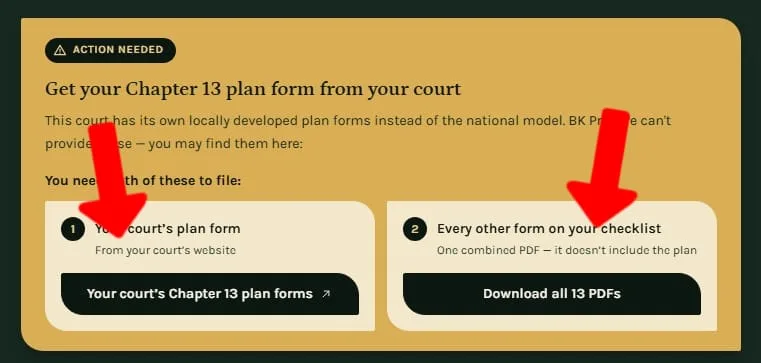
Many courts use their own Chapter 13 plan instead of the national one. In those courts, the checklist shows an Action needed box with two downloads, and a case needs both:
- Your court’s plan form, from the court’s website.
- Every other form on your checklist, as one combined PDF without the plan.
Fill them out on your computer
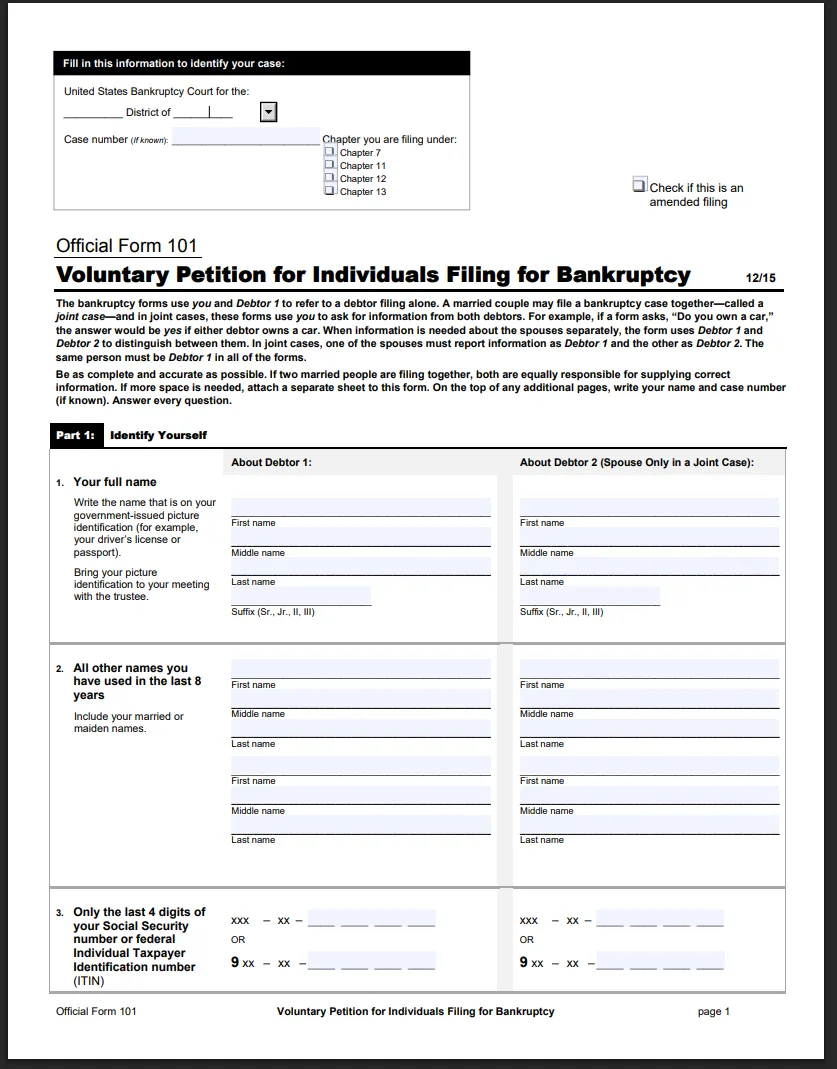
The forms in the download can be filled out on screen. Open the PDF in your browser or a PDF reader, click a field and type. Every form’s fields work the same way they do in the court’s own PDF.
Save what you typed
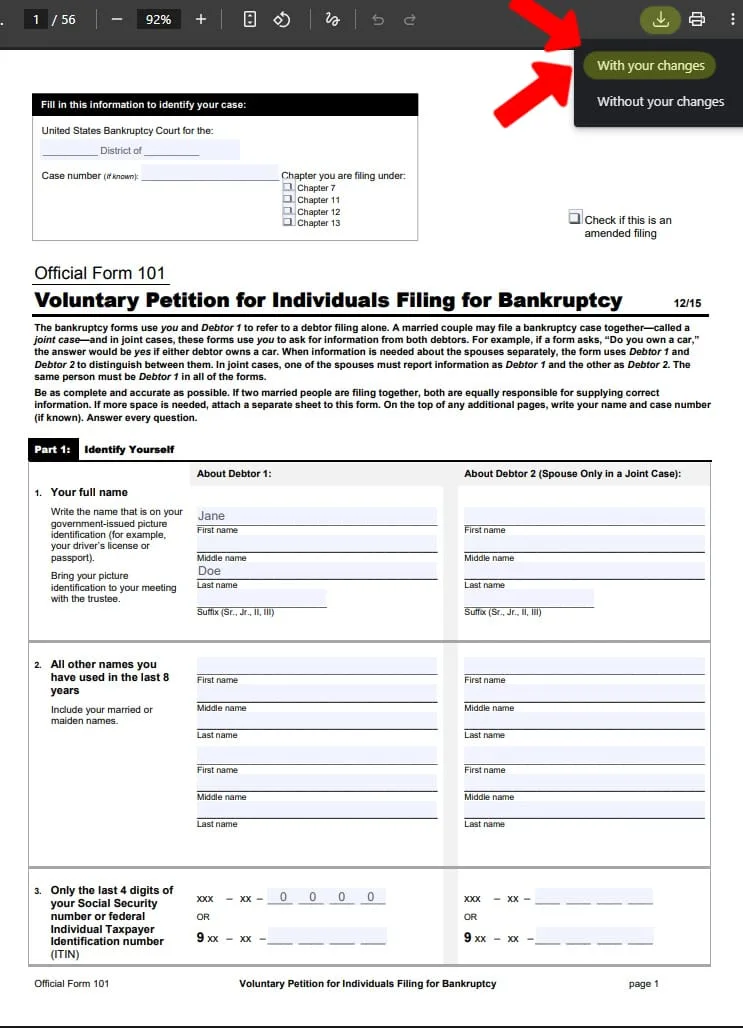
Typed answers live only in the open file until you save them. In Chrome, the download button at the top of the PDF offers With your changes, which saves a copy with everything you’ve entered. Without your changes saves the blank forms again. Other browsers and PDF readers have a Save or Save as command that does the same.
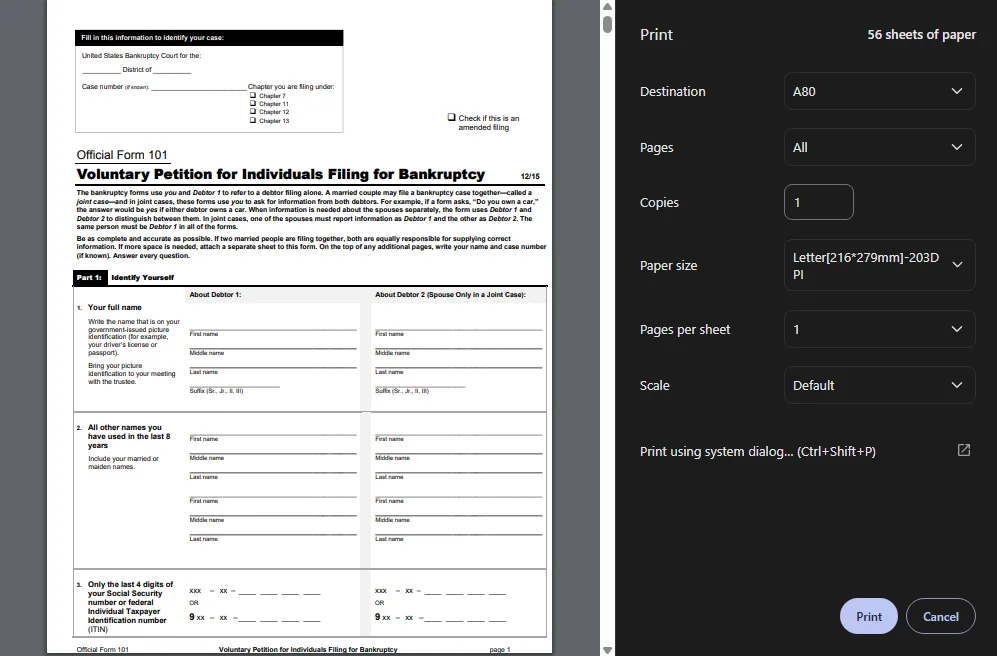
There are two ways to end up with paper. Print the blank forms and fill them in by hand in black ink, or fill them out on screen first and print the finished copy.